
How to use IBOB Player with Media Station X (MSX)
By the IBOB Player team · Published · Updated
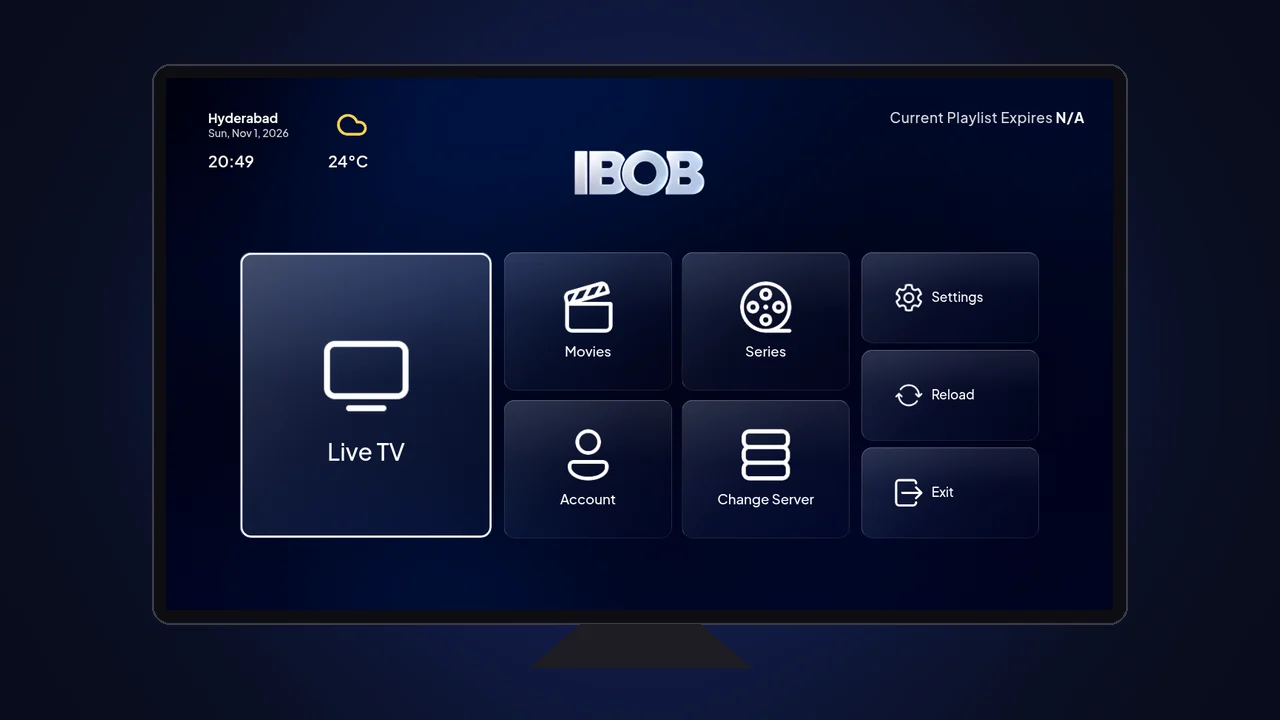

- Free trial on every device
- You add your own playlist
Media Station X (MSX) is a free app that is already in the app store of many smart TVs, including Samsung, LG, Hisense (VIDAA) and Philips. With it you can use IBOB Player on a TV even where there is no IBOB Player app yet. You type one short address, ibob.app, and IBOB Player opens inside MSX.
This guide shows every step with a real screenshot. It takes about five minutes.
IBOB Player is a media player. It does not provide channels, playlists or subscriptions. Only add playlists you are legally entitled to use.
What you need
- A TV or device that can install Media Station X (see the list below).
- Your remote control. In MSX you move with the arrow keys and select with OK.
- Your playlist from your own provider: an M3U link or an Xtream login. Not sure which one you have? Read M3U and Xtream playlists explained.
- A phone or computer to add the playlist on our website (much easier than typing on a TV).
Which devices can use it?
This list comes from the official Media Station X platform page. Install MSX from the store named for your device:
| Device | Where to get Media Station X |
|---|---|
| Samsung smart TVs (Tizen, 2014 and newer) | Samsung Smart Hub (apps) on the TV |
| LG smart TVs (webOS, and older NetCast models) | LG Content Store on the TV |
| Android TV (e.g. Sony, TCL, Sharp, Philips, Nvidia) and Android phones and tablets | Google Play |
| Fire TV and Fire tablets | Amazon Appstore |
| iPhone and iPad (iOS 9.0+) | Apple App Store |
| Mac (macOS 10.15+) | Apple App Store |
| Windows PCs, tablets and Xbox (Windows 10+) | Microsoft Store |
| Vewd smart TVs (e.g. Hisense, TiVo, Samsung Blu-ray players) | Vewd App Store on the TV |
| TP Vision smart TVs (e.g. Philips, Sharp) | TP Vision App Gallery on the TV |
| Foxxum smart TVs (e.g. Hisense, Sharp, TCL, Vestel) | Foxxum App Store on the TV |
| VIDAA smart TVs (e.g. Hisense, VIDAA U6+) | VIDAA App Store on the TV |
| Any other TV, computer, tablet or phone | Open msx.benzac.de in the web browser |
Apple TV is not on the official list, so this route does not work there. IBOB Player for Apple TV is coming soon. On a Fire TV, Android TV or Windows PC you can also use the regular IBOB Player app.
Samsung TVs from 2011 to 2013 can no longer get MSX from the Samsung store, according to the MSX site.
Step 1: Install Media Station X
On your TV, open the app store (see the table above), search for Media Station X and install it. The app is free and made by benzac.de.

Step 2: Open Media Station X
Open the app. The first time, MSX shows its own Welcome screen. That is normal: IBOB Player is not loaded yet.

Step 3: Go to Settings
Press the down arrow until Settings is highlighted, then press OK.

Step 4: Open Start Parameter
The first tile is Start Parameter. It is already highlighted, so just press OK.

Step 5: Choose Setup
A short info window opens. Setup is highlighted. Press OK.

Step 6: Accept the MSX notice
MSX shows a disclaimer about using its app. Read it, move down to Continue and press OK.

Step 7: Type ibob.app
An on-screen keyboard appears. Type ibob.app exactly like this:
- small letters, with a dot before app
- no
http://, nowwwand no/at the end
Use the arrow keys and OK to pick each letter, or plug in a USB keyboard. Then move to the ✓ key at the bottom right and press OK.
On a TV app, leave the padlock key off. In a web browser MSX turns it on by itself; that is fine too.

Step 8: Confirm with Yes
MSX checks the address and shows Start parameter successfully loaded, with the name IBOB Player. Make sure Yes is highlighted and press OK. MSX reloads and opens IBOB Player.

From now on, IBOB Player opens every time you start Media Station X. You only do steps 3 to 8 once.
Step 9: IBOB Player opens and your trial starts
You now see the IBOB Player start screen with your free trial (7 days). Write down or take a photo of the two values on the left:
- MAC address: starts with
02:4D:53 - Device key: 6 digits
Press OK on Continue to reach the IBOB Player home screen.

Step 10: Find your MAC address and device key later
Need the values again? On the IBOB Player home screen choose Account. The Device Activation window shows your MAC address, device key and your trial or licence status.

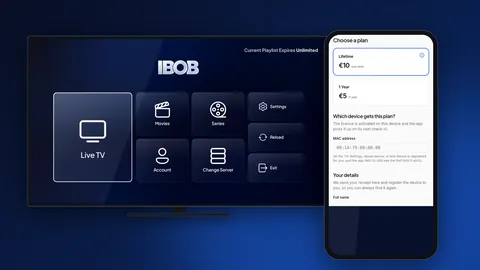
Step 11: Activate the device (after the trial, or any time)
Use the trial first with your own playlist. When you want to keep IBOB Player, open ibobplayer.com/activate on your phone or computer:
- Choose a plan: 1 Year (€5) or Lifetime (€10), one-time payment, no auto-renewal.
- Under MAC address, type the MAC address from your TV (or switch to Use device ID instead).
- Enter your email for the receipt and continue to payment.
You can also scan the QR code on the IBOB Player screen with your phone. The TV picks up the licence on its next check-in; choose Reload on the home screen to check straight away. Read more in how activation works.

Step 12: Sign in on the website with your MAC address and device key
To add a playlist, open ibobplayer.com/login on your phone or computer. Enter the MAC address and device key from your TV and choose Open my portal. There is no password and nothing to sign up for.

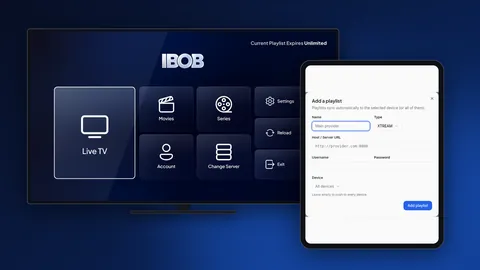
Step 13: Add your playlist and load it on the TV
In the portal open Playlists and choose Add playlist. Paste your M3U link, or enter your Xtream server, username and password. The full form is explained in how to add a playlist.
Then, on the TV, open Change Server on the IBOB Player home screen and choose Sync Playlists (or choose Reload on the home screen). Your playlist appears, and Live TV, Movies and Series fill up.
Tip: the Change Server screen also shows a QR code. Scan it with your phone to open the website straight away.

Troubleshooting
- “Start parameter could not be loaded”: check the spelling: ibob.app, no spaces, no
http://, nowww. Check that the TV is online, then try again. - MSX still shows its own welcome screen: the setup was not finished (for example No was chosen). Repeat steps 3 to 8.
- The playlist does not show up: on the TV open Change Server and choose Sync Playlists, or choose Reload on the home screen. Check that you signed in with the MAC address and key from this TV.
- “Trial Expired”: playback is locked until the device is activated. See step 11.
- Wrong MAC address at checkout: use the values from Account on the IBOB Player home screen in MSX (they start with
02:4D:53), not the MAC address from the TV’s own network settings. - Picture stutters: usually the network or the stream. Work through the buffering checklist.
- In a web browser some streams do not play: browser pages are secure (https) and may refuse plain http streams. Use the MSX app from your TV’s store instead.
- Remove or change it: in MSX open Settings → Start Parameter → Reset.
- Still stuck? Contact support.
Frequently asked questions
What is Media Station X?
Media Station X (MSX) is a free cross-platform app made by benzac.de. On its own it contains no content: you give it a start parameter, and it opens that service. For IBOB Player the start parameter is ibob.app.
What do I type as the start parameter?
Type ibob.app, exactly like that: no http://, no www and no slash at the end. You enter it in MSX under Settings, Start Parameter, Setup.
Which devices can run Media Station X?
According to the official MSX site: Samsung TVs (Tizen), LG TVs (webOS and NetCast), Android TV and Android phones and tablets, Fire TV and Fire tablets, iPhone and iPad, Mac, Windows and Xbox (Microsoft Store), Vewd, TP Vision (for example Philips), Foxxum and VIDAA (for example Hisense) smart TVs, plus any other device through a web browser.
Can I use IBOB Player on Apple TV with Media Station X?
No. Apple TV (tvOS) is not on the official Media Station X platform list. IBOB Player for Apple TV is coming soon.
Is it free?
The Media Station X app is free and needs no registration. IBOB Player inside MSX starts with a 7-day free trial; after that a one-time plan for that device keeps it working: 1 Year for €5 or Lifetime for €10.
Do I need an IBOB account?
No. IBOB Player shows a MAC address and a 6-digit device key on your TV. You sign in on ibobplayer.com with those two values to add playlists and to activate the device.
My Fire TV already has a licence. Does it cover my TV with MSX?
No. Every device has its own trial and licence. Media Station X on your TV shows its own MAC address and device key, so it is activated separately.
Does IBOB Player include channels?
No. IBOB Player is a media player only. You add an M3U or Xtream playlist you already have from your own provider and are legally entitled to use.
How do I remove IBOB Player from Media Station X?
In MSX open Settings, then Start Parameter, and choose Reset. MSX then starts with its own welcome screen again.
Related guides
 IBOB Player playlist: how to add your M3U or Xtream playlistAdd an IBOB Player playlist from your account: paste an M3U link or enter Xtream server, username and password, choose a device, then edit or remove it.
 How to activate IBOB Player on your deviceActivate IBOB Player after the free trial: find your MAC address or 6-digit device key, choose a plan, pay once, and the app unlocks on its next check-in.
 Using M3U and Xtream playlists with IBOB PlayerWhat M3U and Xtream playlists are, which one you have, and how to add it to IBOB Player on Android TV, Fire TV Stick and Android.
 IPTV buffering and freezing: a step-by-step troubleshooting guideVideo buffering or freezing in your IPTV player? Work through network, device, app and source checks to find the real cause, with simple tests you can run on any TV box.