
How to add your M3U or Xtream playlist to IBOB Player
By the IBOB Player team · Published · Updated

- Free trial on every device
- You add your own playlist
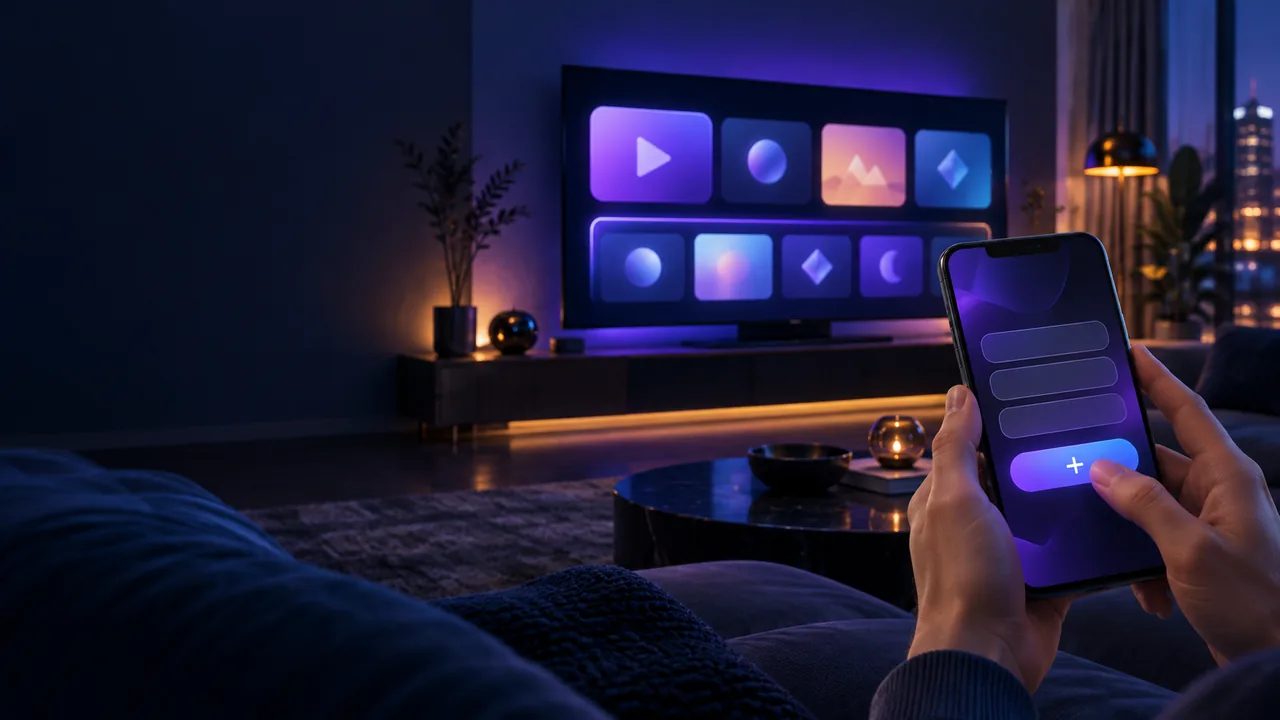
IBOB Player is a media player: it does not come with channels or playlists. You add the M3U link or Xtream-style login that you already have from your own provider, and the app plays it. Rather than typing long addresses on a TV remote, you add the playlist from your account on the website, and it syncs to your devices. This guide walks through it.
IBOB Player does not provide channels, playlists or subscriptions. Only add playlists you are legally entitled to use.
Before you start
- A playlist from your own provider. Either a single link (M3U/M3U8) or an Xtream-style login: server address, username and password. Unsure which one you have? Read M3U and Xtream playlists explained or the short comparison M3U vs Xtream login.
- IBOB Player installed on at least one device (Android TV, Fire TV, Android phone or tablet). Opening the app once links the device to the system and starts your free trial.
- An account on the website. Sign in or register.
Step 1: Open Playlists in your account
After signing in you land in your dashboard. Open Playlists from the menu. If you have none yet, you will see “No playlists” and an Add playlist button.
Step 2: Fill in the Add a playlist form
Click Add playlist. The form has four fields:
- Name: anything that helps you recognise it, for example “Main provider” or “Sports backup”. It is only a label.
- Type: choose M3U or Xtream.
- M3U: paste the playlist link your provider gave you. It usually ends in
.m3uor.m3u8, or containsget.php. - Xtream: enter your provider’s Xtream address together with your username and password, as your provider supplied them.
- M3U: paste the playlist link your provider gave you. It usually ends in
- Source URL: paste the link or details here. Copy and paste instead of retyping; one wrong character is the most common reason a playlist does not load.
- Device: choose a specific device, or leave it empty (All devices) to push the playlist to every device on your account.
Click Add playlist to save. You will see a confirmation that the playlist was added and will sync to your devices.
Step 3: Open the app on your device
Playlists sync automatically to the selected device on its next check-in. Open IBOB Player on your TV, box or phone; if the playlist does not appear straight away, close the app completely and open it again.
You can keep up to 5 playlists (for example from different providers) and switch between them in the app.
Your playlist source stays private
Once saved, the source link is hidden in the playlists list. Showing or copying it asks for a playlist PIN (4 to 8 digits) that you choose the first time. This protects your login details if someone else uses your computer. The PIN can be changed in your account settings.
Edit or remove a playlist
- Edit: use the actions menu on the playlist row to change its name or type. Leave the source field blank to keep the current source, or enter a new link to replace it. Changes sync on the next check-in.
- Remove: the same menu has Remove. The playlist then disappears from all synced devices. You can also select several playlists and delete them together.
Troubleshooting
- The playlist does not show up on the TV: confirm it was saved under the correct device (or “All devices”), then fully close and reopen the app. Make sure the TV is online.
- It shows up but is empty or will not load: check that the link or login still works with your provider; expired or mistyped details are the usual cause. Re-add or edit the source with a fresh copy-paste.
- Wrong type selected: an Xtream login saved as M3U (or the reverse) will not load. Edit the playlist and switch the type.
- Playback stutters: that is usually a network or stream issue; see IPTV buffering troubleshooting.
- Trial ended? Each device is activated separately; see how activation works.
- Still stuck? Contact support.
Frequently asked questions
Where do I add a playlist in IBOB Player?
In your account on the IBOB Player website: sign in, open Playlists and choose Add playlist. The playlist then syncs to your devices, so you do not have to type long links on a TV remote.
Should I choose M3U or Xtream?
Choose M3U if your provider gave you a single playlist link (often ending in .m3u or .m3u8, or containing get.php). Choose Xtream if you received a server address with a username and password.
How many playlists can I add?
IBOB Player supports up to 5 playlists, and you can switch between them.
Does IBOB Player provide playlists or channels?
No. IBOB Player is a media player only. You add a playlist you already have from your own provider and are legally entitled to use.
How long until the playlist shows up on my TV?
Playlists sync automatically to the selected device the next time the app checks in. If it does not appear, close and reopen the app.
Can I send a playlist to just one device?
Yes. When adding the playlist, pick a device, or leave the device empty to push it to every device on your account.
Related guides
 Using M3U and Xtream playlists with IBOB PlayerWhat M3U and Xtream playlists are, which one you have, and how to add it to IBOB Player on Android TV, Fire TV Stick and Android.
 M3U vs Xtream login: what's the difference?M3U link or Xtream-style login? Learn how the two playlist formats differ, how to tell which you have and what that means for your media player.
 IBOB Player for Android TVHow to install IBOB Player on Android TV, add your own M3U or Xtream playlist and activate your device. Works on smart TVs, set-top boxes and projectors.
 IBOB Player for Android phones and tabletsInstall IBOB Player on an Android phone or tablet (Android 8.0+), add your own M3U or Xtream playlist and activate the device. Step-by-step APK install guide.