
IBOB Player for Android phones and tablets
By the IBOB Player team · Published · Updated

- Free trial on every device
- You add your own playlist
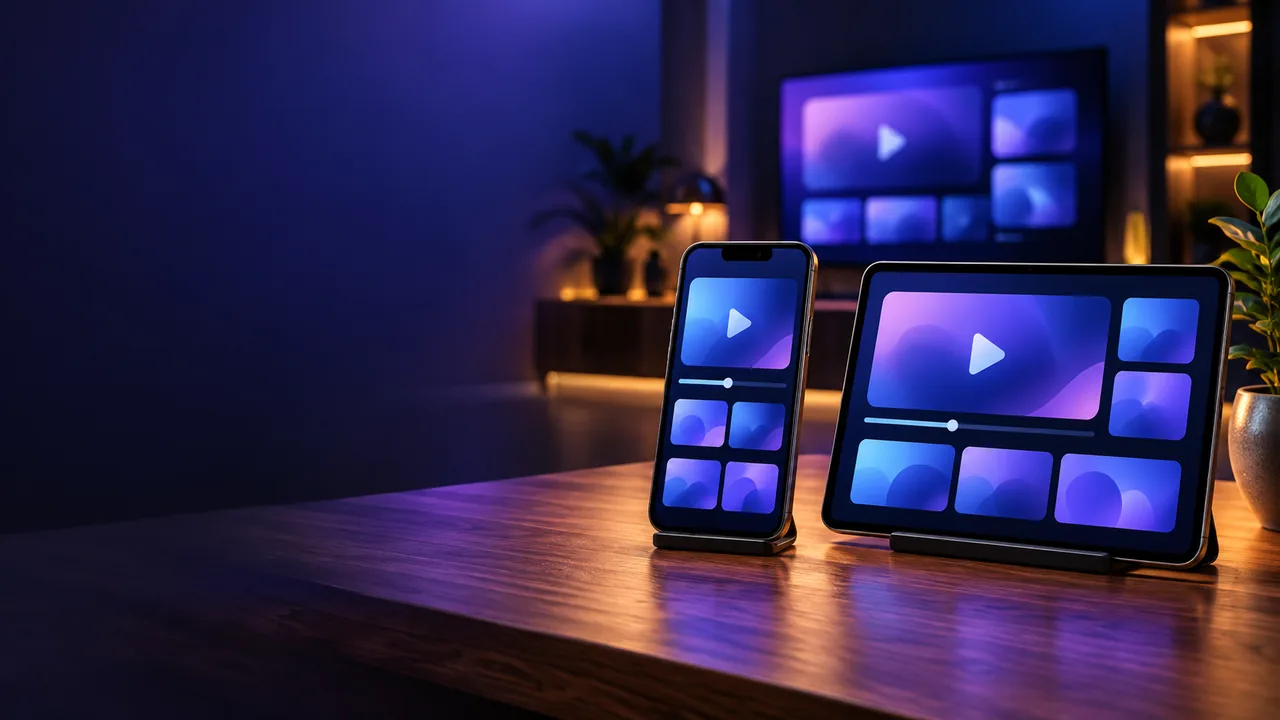
IBOB Player is a media player for Android, and it is not limited to the big screen: the same app runs on Android phones and tablets with Android 8.0 or newer. You bring your own M3U or Xtream playlist, and the app plays your live TV, movies and series. This guide covers installing the APK, adding a playlist and activating the device.
IBOB Player does not provide channels, playlists or subscriptions. Only add playlists you are legally entitled to use.
What you need
- An Android phone or tablet running Android 8.0 or newer (check under Settings, then About phone, then Android version).
- A playlist from your own provider: an M3U/M3U8 link or Xtream-style login details (server URL, username and password). Not sure which you have? See M3U and Xtream playlists explained.
- Wi-Fi or mobile data. Video streams use a lot of data, so Wi-Fi is the better choice for long viewing.
Step 1: Download the APK
IBOB Player is installed from its APK file rather than from the Play Store. On your phone or tablet, pick one source:
- Direct download (recommended): open ibobplayer.com in your phone’s browser, go to the Download section, choose Android TV and tap Direct Download. This always fetches the latest version.
- APK stores: if you already use ApkPure or Aptoide, search for IBOB Player there.
Only download the app from these sources. Copies from other sites may be outdated or modified.
Step 2: Allow the install
Android blocks apps from outside the Play Store until you allow the app that opens the file:
- Tap the downloaded file (in the browser’s downloads or your Files app).
- If Android says installs from this source are not allowed, tap Settings and turn on Allow from this source for your browser or Files app.
- Go back and tap Install. Google Play Protect may offer to scan the app first; let it scan, then continue.
Once installed, you can switch the “allow from this source” option off again. The exact menu names vary a little between phone brands (Samsung, Xiaomi, Pixel and others), but the flow is the same.
Step 3: Open the app and note your device details
The first time you open IBOB Player, your free trial starts. Two details identify this phone or tablet when you activate it:
- the device key, shown on the splash screen;
- the MAC address, under Settings, then About device, inside the app.
Take a screenshot of them; you will need them for activation or if you buy through a reseller.
Step 4: Add your playlist
Playlists are managed from your account on this website rather than typed in on a small keyboard: sign in through the portal, add your M3U link or Xtream details, and the playlist syncs to the devices linked to your account. You can keep up to five playlists and switch between them. If you already set up IBOB Player on a TV, the same account playlists can be used on your phone too.
Step 5: Activate after the trial
When the trial ends, a plan activates the device. Each phone, tablet or TV is activated on its own, identified by its MAC address. Read how activation works, then pick a plan from the pricing section. Bought through a reseller? Send them the device key and MAC address and the licence activates when the app next checks in.
Phone and tablet tips
- Tablets make a great second screen: use the same playlists as your living-room TV, with favorites for the channels, movies and series you watch most.
- Watch your data: on mobile data, an HD stream commonly uses a few gigabytes per hour. Prefer Wi-Fi, or check whether your provider offers lower-quality streams.
- Battery: streaming video keeps the screen and network busy. Plug in for long sessions.
- Parental controls: if children use the tablet, lock content by rating or category in the app’s parental controls.
Troubleshooting
- “App not installed”: check the Android version (8.0 or newer), free up storage space, and if an older copy from another source is installed, uninstall it first and install again from the direct download.
- Can’t find the downloaded file: open your browser’s Downloads list or the Files app and look in Downloads.
- Playlist is empty or won’t load: confirm the link or login works with your provider and that the playlist is saved in your account, then reopen the app. For stutter and freezing, see IPTV buffering troubleshooting.
- Still stuck? Contact support.
Frequently asked questions
Does IBOB Player work on Android phones and tablets?
Yes. IBOB Player runs on Android phones and tablets with Android 8.0 or newer, as well as on Android TV devices.
Is IBOB Player on the Google Play Store?
The app is installed from the APK: download it directly from the IBOB Player website, or find it on ApkPure or Aptoide by searching for IBOB Player.
Does IBOB Player come with channels?
No. IBOB Player is a media player only. You add the M3U or Xtream playlist you already have from your own provider.
Can I use the same playlist on my phone and my TV?
Yes. Playlists are saved in your account on the website and sync to the devices linked to that account. Each device is activated separately.
Is there a free trial on phones?
Yes. The free trial starts when you first open the app, on phones and tablets the same as on TVs.
Related guides
 IBOB Player for Android TVHow to install IBOB Player on Android TV, add your own M3U or Xtream playlist and activate your device. Works on smart TVs, set-top boxes and projectors.
 How to activate IBOB Player on your deviceActivate IBOB Player after the free trial: find your MAC address or 6-digit device key, choose a plan, pay once, and the app unlocks on its next check-in.
 Using M3U and Xtream playlists with IBOB PlayerWhat M3U and Xtream playlists are, which one you have, and how to add it to IBOB Player on Android TV, Fire TV Stick and Android.
 M3U vs Xtream login: what's the difference?M3U link or Xtream-style login? Learn how the two playlist formats differ, how to tell which you have and what that means for your media player.