
IPTV playlist not working: how to fix M3U and Xtream problems
By the IBOB Player team · Published · Updated
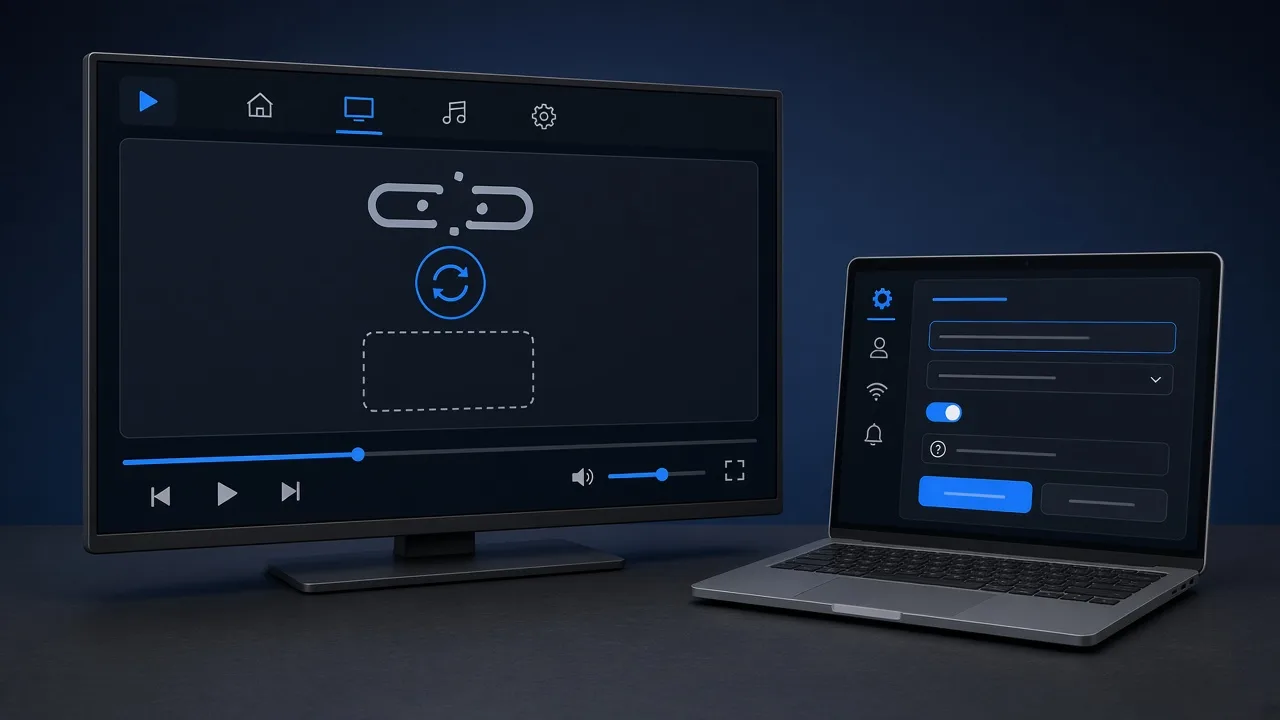
When an IPTV playlist will not load, the cause is almost always the playlist details or the provider, not the player. In most cases you can find it in five minutes: check that the link or login was entered exactly, confirm the account is still active, then rule out the network and device. This guide works for any player, including IBOB Player.
No channels included. IBOB Player is a media player only: it plays the M3U or Xtream playlist you add from your own provider. We do not sell playlists, channels or subscriptions.
Only add playlists you are legally entitled to use.
Quick diagnosis: what do you see?
Match your symptom to the section that fixes it:
| Symptom | Most likely cause | Go to |
|---|---|---|
| “Invalid URL”, “Failed to load”, empty list | Incomplete or expired M3U link | M3U checks |
| “Login failed”, “Authorization failed” | Server URL format, typo, expired account | Xtream checks |
| List loads, channels will not start | Connection limit, dead channel, blocking | Plays nothing |
| Worked yesterday, fails today | Account expired, provider outage, link changed | Account and provider |
| Works on phone, fails on TV | Device clock, network, app version | Device and network |
| Plays but stutters | Network or source load | Buffering guide |
First: M3U or Xtream?
You need to know which format you have, because each has its own failure points:
- M3U (or M3U8): one long link. It often ends in
.m3uor.m3u8or containsget.php. The link points to a text file listing every stream. - Xtream Codes: three values, a server URL, a username and a password. The player asks the server for the live, movie and series lists.
A very common mistake is choosing the wrong type in the player, for example pasting an Xtream server address into an M3U field. If in doubt, read M3U vs Xtream Codes login.
M3U link checks
- Copy the whole link. M3U links are long, and messaging apps sometimes wrap or cut them. A missing character at the end breaks the link.
- Remove spaces at the start or end. They are invisible but count as part of the address.
- Do not retype it. Copy and paste from the original message. Typing a 120-character link on a TV remote almost guarantees a typo, which is why IBOB Player lets you add playlists in your account on the website instead.
- Test it in a browser on a computer. A working link either downloads a file or shows text that starts with
#EXTM3U. An error page, a login page or “403/404” means the problem is at the source. - Check the parameters. Many M3U links contain
username=andpassword=in the address. If your provider changed your password, the old link stops working. - Look at the file size. Very large playlists take longer to load on small devices. Wait a minute on first load before deciding it has failed.
Xtream Codes login checks
- Server URL format. Include the protocol and the port exactly as given, for example
http://example.com:8080. Leave out paths such as/get.phpunless your provider says otherwise, and do not add a trailing slash if the provider did not include one. - http vs https. Use what your provider supplied. Switching one for the other can cause a connection error.
- Username and password are case-sensitive.
Johnandjohnare different. Watch for confusing characters:0andO,1,landI. - No spaces. Paste each field separately and check there is no space at the end.
- Try the login on another device to confirm the details are right.
Account and provider checks
If the details are correct but the playlist still fails, the account itself is usually the cause:
- Expired or suspended account. Most providers stop the playlist the moment the account ends. Ask your provider for the expiry date.
- Connection limit. Many accounts allow only one or two streams at the same time. If someone else in the house is watching, or another app is still open in the background, a new connection may be refused.
- Changed details. Providers sometimes move to a new server address. Check your email for an update.
- Temporary outage. If it worked earlier and nothing changed on your side, wait 15–30 minutes and try again.
Only your provider can fix these. A player cannot repair an expired or blocked account.
The list loads but channels do not play
- Try several channels and a movie. If only one fails, that stream is down at the source.
- Close other players using the same account to free up a connection.
- Try another network, such as your phone’s hotspot for a minute. If it plays there, your network or internet provider may be blocking the stream.
- VPN on or off. Test both ways. A VPN can help when a network blocks streams, but it also adds delay and can make things worse.
Device and network checks
- Restart the app and the device. Unplug TV sticks and boxes for 30 seconds rather than using standby.
- Check the date and time. A wrong clock breaks secure connections. Set the device to automatic time.
- Update the app. Install the latest version from the official source; for IBOB Player see APK download or the Windows app.
- Free up storage. Devices with almost no free space struggle to load large lists.
- Fire TV specifics such as storage and install permissions are covered in IPTV not working on Fire Stick.
Fixes inside IBOB Player
- In your account, open Playlists and check the playlist type (M3U or Xtream) matches what you entered.
- Check the playlist is assigned to the right device, or to All devices.
- Edit the playlist and paste a fresh copy of the source. Leaving the source blank keeps the old one, so paste the new one to replace it.
- Close IBOB Player completely and reopen it so it checks in and syncs.
- If you keep several playlists (up to five), switch to another one to see whether the app itself works.
- If the trial has ended, the device needs activation before it plays: see how activation works.
Step-by-step screens: add a playlist to IBOB Player.
How to report the problem to support
If nothing above helps, contact the right team with the right information:
- Playlist does not load anywhere: your provider.
- Loads elsewhere but not in IBOB Player: IBOB support.
Include the device model, the app version, the playlist type, the exact error message and what you have tried. Never send your password. We will never ask for it.
Prevent it next time
- Save your provider’s details in a password manager, not only in a TV app.
- Note your account’s expiry date.
- Keep a second playlist (if you have one legally) as a backup; IBOB Player can store up to five.
- Keep the app updated.
Try it free, then activate
Every device starts with a 7-day free trial. Test it with your own playlist before you buy, because purchases are non-refundable.
Download IBOB Player · See pricing · Activate a device · More guides: IBOB blog
Frequently asked questions
Why does my M3U playlist say it cannot load?
Most often the link was copied incompletely, has a space at the start or end, or has expired at the provider. Open the link in a browser: if it does not download a file or show text starting with #EXTM3U, the problem is at the source.
Why is my Xtream Codes login rejected?
The server URL is missing http:// or the port, the username or password has a typo (they are case-sensitive), or the account is expired or suspended.
My playlist loads but channels do not play. Why?
The list is fine but the streams are not. Common causes are the provider's connection limit, a single dead channel, or network blocking. Test another channel and another network.
Is the player or the playlist the problem?
Try the same playlist on a second device or player. If it fails everywhere, the playlist or provider is the cause. If it works elsewhere, look at the first device and app.
Does IBOB Player provide playlists?
No. IBOB Player is a media player only. You add a playlist from your own provider that you are legally entitled to use.
What should I send to support?
Your device, the playlist type (M3U or Xtream), the exact error message and what you have already tried. Never send your password.
Related guides
 How to add your M3U or Xtream playlist to IBOB PlayerAdd your own M3U link or Xtream-style login to IBOB Player from your account on the website. Step-by-step: playlist type, source URL, device choice, editing and removing.
 M3U vs Xtream login: what's the difference?M3U link or Xtream-style login? Learn how the two playlist formats differ, how to tell which you have and what that means for your media player.
 IPTV buffering and freezing: a step-by-step troubleshooting guideVideo buffering or freezing in your IPTV player? Work through network, device, app and source checks to find the real cause, with simple tests you can run on any TV box.
 IPTV not working on Fire TV Stick: step-by-step fixesIPTV app not installing, crashing, not loading or buffering on your Fire TV Stick? Diagnose it in minutes and fix storage, install, network and playlist problems.