
IBOB Player for Windows: install, add a playlist and activate
By the IBOB Player team · Published · Updated

- Free trial on every device
- You add your own playlist
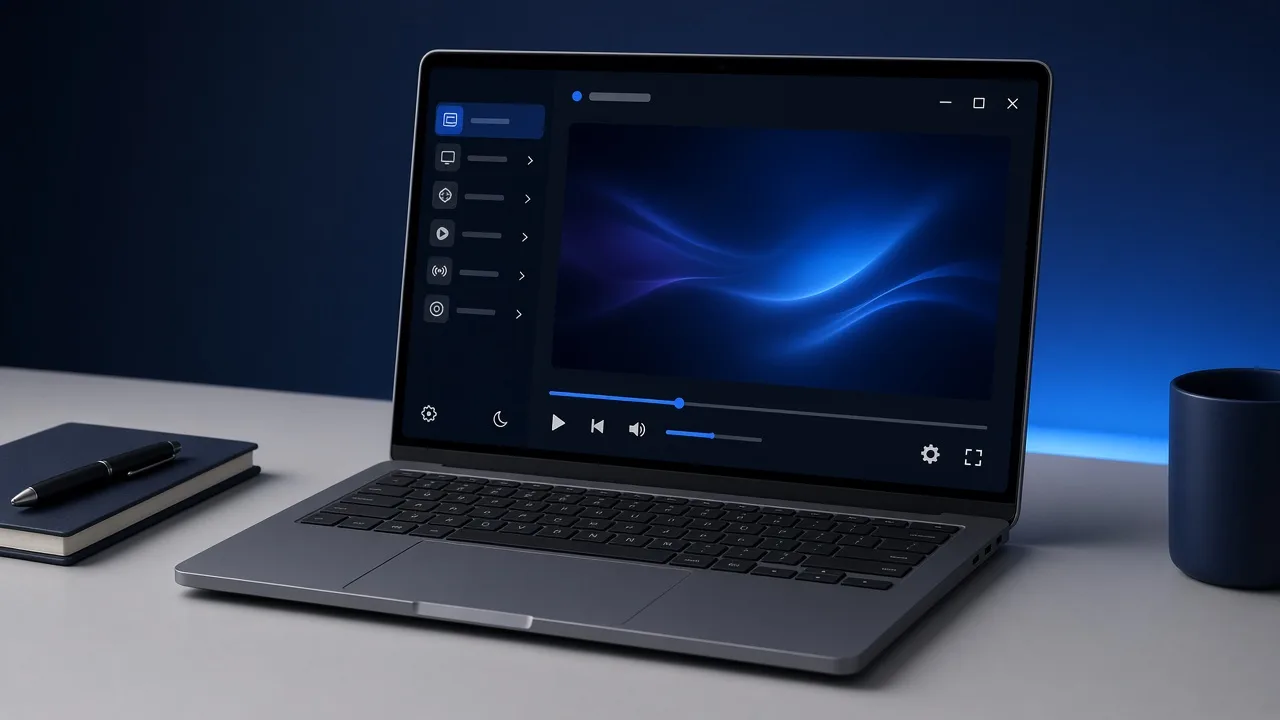
IBOB Player runs on Windows 10 and Windows 11 as a native Windows app from the Microsoft Store. Install it, add your own M3U link or Xtream login in your account, and watch on your laptop or desktop. There is no Android emulator in between.
No channels included. IBOB Player is a media player only: it plays the M3U or Xtream playlist you already have from your own provider. We do not sell playlists, channels or subscriptions.
Only add playlists you are legally entitled to use.
Quick answer
- Download: IBOB Player on the Microsoft Store
- Works on: Windows 10 and Windows 11
- Playlists: M3U links and Xtream Codes logins, up to five, added from your account
- Price: a 7-day free trial on the PC, then a one-time plan (see pricing)
Why a native Windows app matters
Many “IPTV on PC” guides tell you to install an Android emulator such as BlueStacks and then run an Android player inside it. That works, but it adds a second operating system on top of Windows. Emulators use extra memory and processor time, take longer to start, and can be awkward with keyboard shortcuts, full screen and window resizing.
IBOB Player for Windows is installed straight from the Microsoft Store. That has three practical benefits:
- Fewer moving parts. No emulator to install, configure or update.
- Automatic updates. The Microsoft Store keeps the app current, the same way it updates your other Store apps.
- A safer source. You install from Microsoft’s own listing rather than from an unknown download site.
What you need
- A PC or laptop running Windows 10 or Windows 11, signed in to the Microsoft Store.
- A playlist from your own provider: either an M3U/M3U8 link, or an Xtream Codes login (server URL, username and password).
- An account on ibobplayer.com to manage your playlists. You can sign in or register here.
- A stable connection. Ethernet is the most reliable option on a desktop; on a laptop, use 5 GHz Wi-Fi where you can.
Step 1: Install IBOB Player from the Microsoft Store
- Open the official listing: IBOB Player on the Microsoft Store. You can also open the Microsoft Store app and search for IBOB Player.
- Check the app name and publisher on the listing. Several similarly named players exist, and IBOB Player is not IBO Player (see the difference).
- Choose Get or Install and wait for the download to finish.
- Open IBOB Player from the Start menu. Pin it to Start or the taskbar if you will use it often.
The first time the app opens, it links the PC to the system and your 7-day free trial starts.
Step 2: Note your device details
Like every IBOB Player install, the Windows app identifies the device with two details:
- the device key, a 6-digit number shown on the splash screen when the app starts;
- the MAC address, listed in the app under Settings, then About device.
Take a screenshot or write them down. You need them to activate the PC after the trial, or to send to a reseller if you buy from one. Full details: how activation works.
Step 3: Add your M3U or Xtream playlist
You do not type long playlist links inside the app. Instead, you add them once in your account on the website and they sync to your devices:
- In your browser, sign in to your account and open Playlists.
- Choose Add playlist and give it a name you will recognise, for example “Main provider”.
- Select the type: M3U or Xtream.
- Paste the M3U link, or enter the Xtream details exactly as your provider supplied them.
- Under Device, pick your Windows PC or leave it on All devices.
- Save, then close and reopen IBOB Player on the PC. The playlist appears on its next check-in.
You can keep up to five playlists and switch between them in the app. The step-by-step guide with screenshots of each field is here: add a playlist to IBOB Player.
M3U or Xtream: which one do you have?
Your provider’s welcome message tells you which format you have:
| You received | Format | What to enter |
|---|---|---|
One long link, often ending in .m3u or .m3u8, or containing get.php |
M3U | Paste the whole link |
| A server address plus a username and a password | Xtream Codes | Enter all three values exactly |
If you have both, Xtream is usually easier to manage, because the server builds the live, movie and series lists for you. A deeper comparison is in M3U vs Xtream Codes login.
Using IBOB Player on a PC
- Same playlists everywhere. Because playlists live in your account, the lists on your PC and on your Fire TV Stick or Android TV come from the same place.
- Favorites for the channels, movies and series you watch most.
- Audio and subtitle tracks can be picked per title, so each person can watch in their own language.
- Parental controls lock content by rating or category, which is useful on a shared family computer.
- Playlist PIN. On the website, showing or copying a saved playlist source asks for a PIN you choose, which protects your login on a shared PC.
Troubleshooting on Windows
The Store says the app is not available. Check that Windows is up to date (Settings, then Windows Update) and that you are signed in to the Microsoft Store with a Microsoft account.
The app opens but shows no playlist. Confirm the playlist was saved under this PC or under “All devices” in your account. Then close the app completely and open it again so it checks in.
The playlist appears but will not load. The details are usually the cause: a missing character at the end of an M3U link, a server URL without http:// and the port, or an expired account. Work through IPTV playlist not working.
Streams stutter or buffer. Try a wired connection, close large downloads and other streaming tabs, and test another title. If only one source stutters, the problem is on that source’s side. See the buffering checklist.
Trial ended or “not activated”. Each device needs its own licence. Use the device key or MAC address from Step 2 at activate a device; the app picks up the licence on its next check-in.
Try it free, then activate
Every device starts with a 7-day free trial. Test it with your own playlist on your own PC before you buy, because purchases are non-refundable. Plans are a one-time payment for one year or lifetime.
Download IBOB Player · See pricing · Activate a device
More device guides: all IBOB Player guides · APK download for Android devices
Frequently asked questions
Is IBOB Player for Windows a native app?
Yes. It is installed from the Microsoft Store as a Windows app. You do not need an Android emulator such as BlueStacks.
Where do I download IBOB Player for Windows?
From the official Microsoft Store listing at apps.microsoft.com/detail/9mzbxghq1ltp. Avoid copies from other download sites.
Does IBOB Player for Windows include channels?
No. It is a player only. You add your own M3U link or Xtream Codes login from a provider you are legally entitled to use.
Can I use the same playlists on my PC and my TV?
Yes. Playlists are saved in your account on ibobplayer.com and sync to the devices linked to it. You can keep up to five playlists.
Do I need a separate licence for my Windows PC?
Yes. Licences are per device. Your PC starts with its own 7-day free trial, and after that it needs its own plan.
Which Windows versions are supported?
Windows 10 and Windows 11. Install from the Microsoft Store so Windows keeps the app up to date.
Related guides
 How to add your M3U or Xtream playlist to IBOB PlayerAdd your own M3U link or Xtream-style login to IBOB Player from your account on the website. Step-by-step: playlist type, source URL, device choice, editing and removing.
 How to activate IBOB Player on your deviceActivate IBOB Player after the free trial: find your MAC address or 6-digit device key, choose a plan, pay once, and the app unlocks on its next check-in.
 Using M3U and Xtream playlists with IBOB PlayerWhat M3U and Xtream playlists are, which one you have, and how to add it to IBOB Player on Android TV, Fire TV Stick and Android.
 IBOB Player vs IBO Player: how to tell them apartIBOB Player is not IBO Player. They are separate apps with separate websites, licences and support. How to tell them apart and avoid buying the wrong licence.