
How to choose the best IPTV player for Fire Stick and Android TV
By the IBOB Player team · Published · Updated
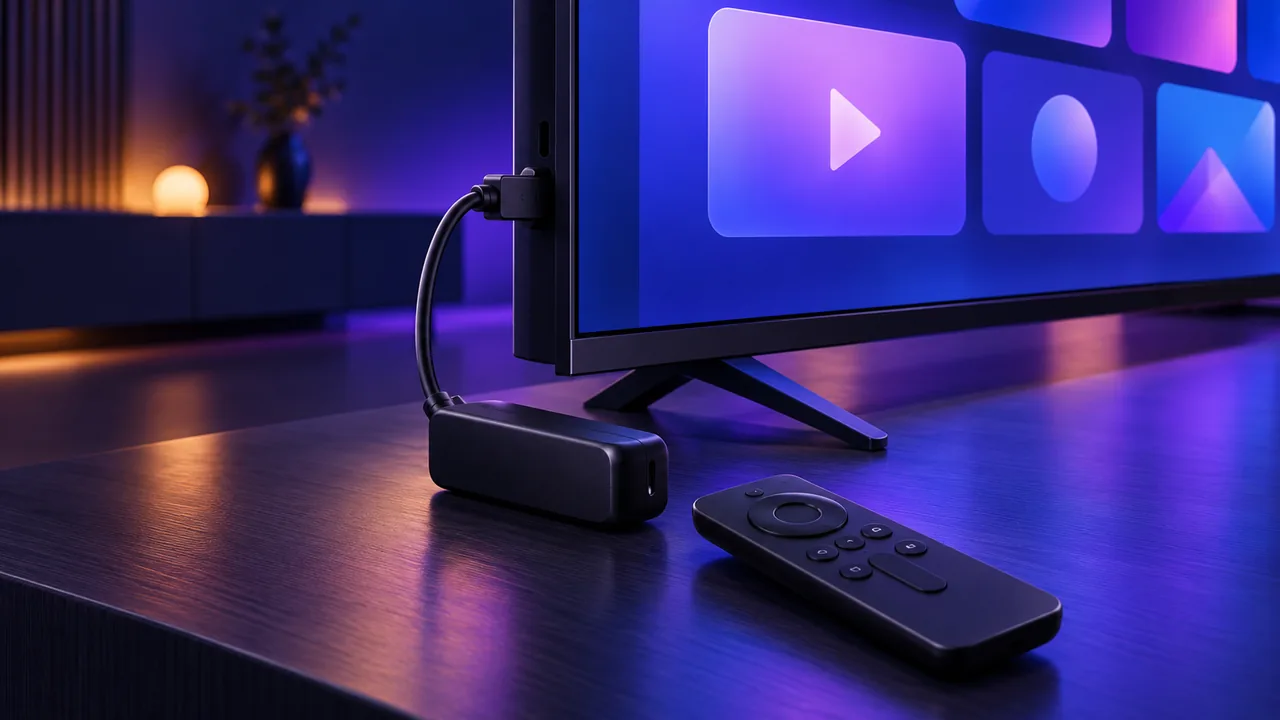
Searching for the best IPTV player for Fire Stick or the best IPTV player for Android TV turns up long lists, but the right player is the one that works with your playlist on your device. This guide gives you a checklist you can use with any app, then shows how IBOB Player fits it.
No channels included. IBOB Player is a media player only: it plays the M3U or Xtream playlist you add from your own provider. We do not sell playlists, channels or subscriptions.
Only add playlists you are legally entitled to use.
The 7-point checklist
| Check | Why it matters | What to look for |
|---|---|---|
| 1. Playlist support | Your provider gives you an M3U link or an Xtream login | Both M3U and Xtream |
| 2. Device support | Fire TV Sticks run Fire OS (Android-based) | Supports your Android / Fire OS version |
| 3. Setup with a remote | Typing long links with a remote causes typos | Add playlists from a phone or computer |
| 4. Several playlists | Many people use more than one source | Multiple playlists and quick switching |
| 5. Free trial | Lets you test playback with your own playlist | Trial on the same device you will use |
| 6. Clear licence terms | Avoid paying twice | Per-device licence, clear activation steps |
| 7. Official install source | Unofficial APKs can be outdated or modified | Download from the developer only |
1. Playlist support: M3U and Xtream
Your provider decides the format, not the player. An M3U playlist is a single link; Xtream is a server URL plus username and password. A good player handles both. Not sure which one you have? Read M3U and Xtream playlists explained or M3U vs Xtream Codes login.
2. Device support: Fire Stick vs Android TV
Fire TV Sticks run Fire OS, which is based on Android, so most Android TV players install on both. Two things to check:
- Android version. IBOB Player needs Android 8.0 or newer.
- Sideloading. Some of Amazon’s newest Fire TV models only allow apps from the Amazon Appstore. If your stick has no “install unknown apps” option, use an Android TV or Google TV device instead. See IPTV not working on Fire Stick.
3. Easy setup with a TV remote
Typing a long M3U link with a remote is slow and error-prone. Prefer a player that lets you add playlists somewhere else. In IBOB Player you add and edit playlists in your account on ibobplayer.com from a phone or computer, and they sync to your TV. Step by step: add a playlist.
4. Several playlists
If you use more than one source, check how many playlists the player keeps and how fast you can switch. IBOB Player keeps up to five playlists.
5. A real free trial
Test with your own playlist, on the device you will actually use, before paying: check channel loading speed, playback and how the remote navigation feels. Every IBOB Player device starts with a free trial.
6. Clear licence and activation terms
Find out whether a licence covers one device or several, and how activation works. IBOB Player licences are per device: you activate with the device key on the splash screen or the MAC address under Settings, About device. See how activation works.
Watch out for look-alike app names. IBOB Player is not IBO Player; licences are not shared between them. See IBOB Player vs IBO Player.
7. Install only from the official source
For IBOB Player, enter Downloader code 2993432, or use the download section. Full guides: Fire TV Stick · Android TV · APK download.
How IBOB Player fits the checklist
- M3U and Xtream playlists, up to five at once
- Android 8.0+ on Fire TV Stick, Android TV, Google TV and NVIDIA Shield, plus a Windows app
- Playlists managed on the website and synced to the TV
- Free trial on every device, then a per-device licence
- No channels included: bring your own playlist
Try it free, then activate
Install IBOB Player, add your own playlist and test it during the free trial. Purchases are non-refundable, so test first.
Frequently asked questions
What is the best IPTV player for a Fire Stick?
The one that supports your playlist type (M3U or Xtream), runs smoothly on your stick, is easy to set up with a remote and lets you test it free before paying. Use the checklist on this page and try your own playlist during the trial.
Does an IPTV player include channels?
No. A player only plays the M3U link or Xtream login you get from your own provider. IBOB Player includes no channels.
Is the best IPTV player for Android TV the same as for Fire Stick?
Usually yes. Fire TV Sticks run Fire OS, which is based on Android, so Android TV players generally install on both. Check that the app supports your device's Android version (IBOB Player needs Android 8.0 or newer).
Should I pick a free or a paid IPTV player?
Compare what you get after any trial: updates, support and how the licence works. Whatever you choose, test it with your own playlist first. IBOB Player has a free trial on every device; purchases are non-refundable.
Where should I download an IPTV player APK?
Only from the developer's official source. For IBOB Player that is the Downloader code 2993432 or the download section on ibobplayer.com.
Related guides
 IBOB Player for Fire TV StickInstall IBOB Player on a Fire TV Stick with the Downloader app, then add your own M3U or Xtream playlist. Step-by-step setup and device activation.
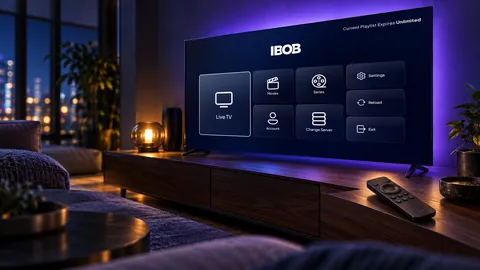 IBOB Player for Android TVHow to install IBOB Player on Android TV, add your own M3U or Xtream playlist and activate your device. Works on smart TVs, set-top boxes and projectors.
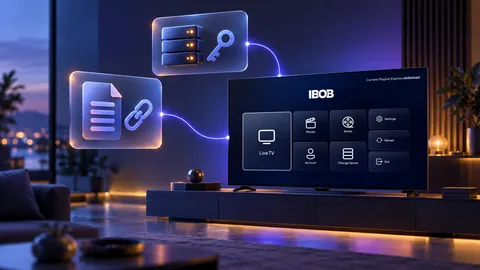 Using M3U and Xtream playlists with IBOB PlayerWhat M3U and Xtream playlists are, which one you have, and how to add it to IBOB Player on Android TV, Fire TV Stick and Android.
 IPTV not working on Fire TV Stick: step-by-step fixesIPTV app not installing, crashing, not loading or buffering on your Fire TV Stick? Diagnose it in minutes and fix storage, install, network and playlist problems.