
IBOB Player for LG TV: coming soon, and how to watch today
By the IBOB Player team · Published · Updated
- Free trial on every device
- You add your own playlist
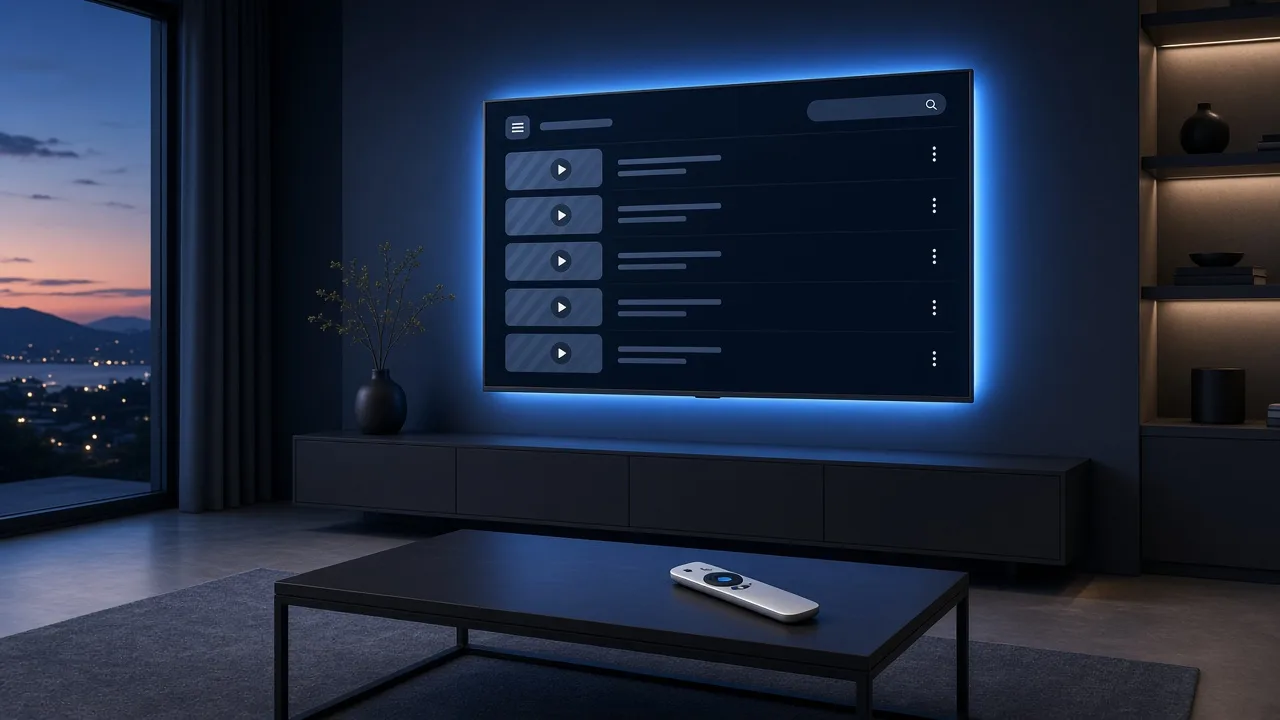
A native IBOB Player app for LG smart TVs (webOS) is in development, but it is not released yet and there is no launch date. You can join the waitlist below, and you can already use IBOB Player on any LG TV today by plugging in a supported streaming stick or box.
No channels included. IBOB Player is a media player only: it plays the M3U or Xtream playlist you already have from your own provider. We do not sell playlists, channels or subscriptions.
Only add playlists you are legally entitled to use.
Current status of the LG app
- Platform: LG webOS smart TVs
- Status: in development
- Release date: not announced. We will not publish one until the app is ready, and we do not promise dates we cannot keep.
- How to hear first: the waitlist email below
Be careful with apps in the LG Content Store that have similar names. IBOB Player is not IBO Player, and until we announce the LG release, any “IBOB” app you find there is not ours (how to tell players apart).
Join the LG waitlist
Send us one email and we will tell you when the LG app launches. We only use your address for that notice.
Email me when the LG app launches
If you like, add your TV model (it is on the label at the back, or under Settings, Support, TV information). It helps us plan testing.
Use IBOB Player on your LG TV today
Every LG smart TV has HDMI ports, so the quickest way to watch now is a small streaming device. IBOB Player is available on all of these:
| Device | Why choose it | Setup guide |
|---|---|---|
| Fire TV Stick | Small, widely available, plugs straight into HDMI | Fire TV Stick guide |
| Google TV device | Modern interface and Google Assistant remote | Google TV guide |
| Android TV box | Many models have an Ethernet port | Android TV guide |
| NVIDIA Shield | Powerful, wired network, good for large playlists | NVIDIA Shield guide |
Set it up in five steps
- Plug the device into a free HDMI port on the LG TV and connect its power adapter.
- Press Input on the LG remote and select that HDMI port.
- Install IBOB Player on the device. On Fire TV, use Downloader with code 2993432; on Google TV and Android TV, use the direct download from ibobplayer.com. Details: APK download.
- Open IBOB Player once to start the 7-day free trial, then add your playlist in your account (step-by-step).
- If you like what you see, activate the device after the trial.
Tip: LG TVs support HDMI-CEC (LG calls it SIMPLINK). With it switched on, the TV can switch to the stick’s input when you press Home on the stick’s remote, and some sticks can turn the TV on and off.
Will a licence carry over to the LG app later?
Licences are tied to one device. If you activate a Fire TV Stick today, that licence stays with the stick, which keeps working even after the LG app is released. The LG TV itself would count as a separate device with its own free trial. Your playlists are different: they live in your account and can sync to every device you link, including a future LG TV. More: how activation works.
M3U or Xtream: what to have ready
When the LG app arrives, and on a stick today, you will need one of these from your provider:
- M3U link: one long URL, often ending in
.m3uor.m3u8. - Xtream Codes login: server URL, username and password.
You add it once on the website, not with the TV remote. Unsure which you have? Read M3U and Xtream playlists explained.
Troubleshooting on an LG TV with a stick
- No picture from the stick: check the HDMI input, try another port, and use the stick’s own power adapter rather than the TV’s USB port.
- Remote does not control the TV volume: enable SIMPLINK / HDMI-CEC on the LG TV, or set up TV control in the stick’s settings.
- Playlist does not load: see IPTV playlist not working.
- Buffering: Wi-Fi behind a wall-mounted TV is often weak. See the buffering checklist.
Also on Samsung? See IBOB Player for Samsung TV. All device guides: IBOB Player guides.
Try it free, then activate
Every device starts with a 7-day free trial. Test it with your own playlist before you buy, because purchases are non-refundable.
Frequently asked questions
Is IBOB Player available on LG TV now?
Not yet. A native app for LG smart TVs (webOS) is in development. There is no release date yet. Join the waitlist and we will email you when it launches.
Can I use IBOB Player on my LG TV today?
Yes, through a supported streaming device plugged into the TV's HDMI port, such as a Fire TV Stick, a Google TV or Android TV device, or an NVIDIA Shield.
Will my licence move to the LG app later?
Licences are tied to one device. A licence for a Fire TV Stick stays with that stick. The LG TV would be a separate device with its own trial.
Will the LG app include channels?
No. Like every IBOB Player version, it will play your own M3U or Xtream playlist only.
Which LG TVs will be supported?
We will publish the supported webOS versions when the app is released. We do not announce details before then.
Related guides
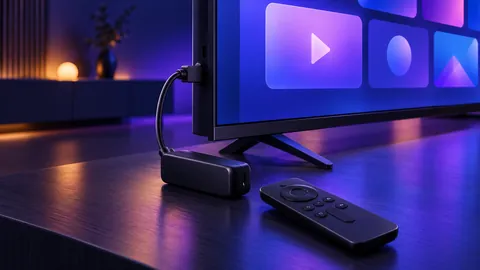 IBOB Player for Fire TV StickInstall IBOB Player on a Fire TV Stick with the Downloader app, then add your own M3U or Xtream playlist. Step-by-step setup and device activation.
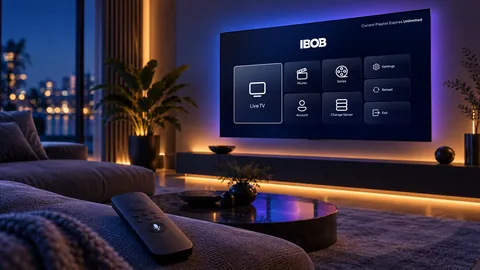 IBOB Player for Google TV and Chromecast with Google TVInstall IBOB Player on Google TV or Chromecast with Google TV using the Downloader app, then add your own M3U or Xtream playlist and activate your device.
 IBOB Player for Samsung TV: coming soon, and what to use nowIBOB Player for Samsung smart TVs (Tizen) is in development. Join the waitlist, and play your own M3U or Xtream playlist on a Samsung TV today with a stick.
 How to activate IBOB Player on your deviceActivate IBOB Player after the free trial: find your MAC address or 6-digit device key, choose a plan, pay once, and the app unlocks on its next check-in.