
IBO Player alternative: what to know before you switch
By the IBOB Player team · Published · Updated
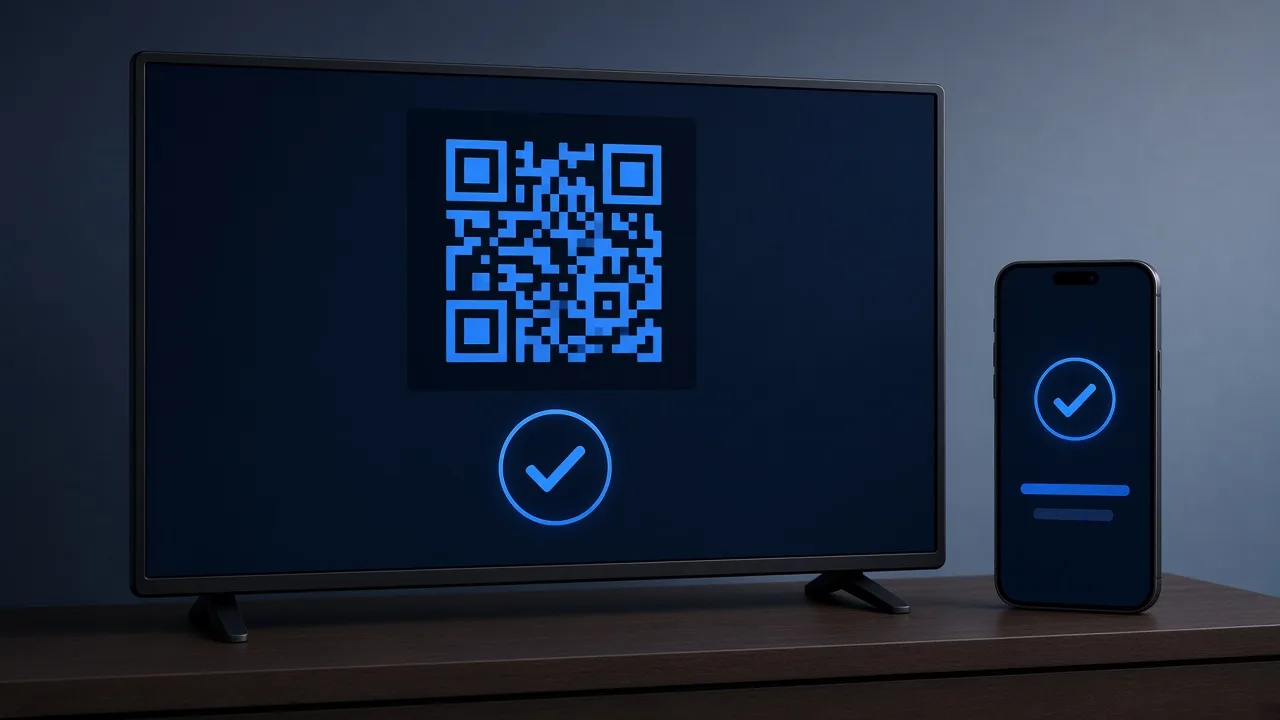

- Free trial on every device
- You add your own playlist
If you are looking for an IBO Player alternative, start with one fact: IBOB Player is a different app, even though the names are almost the same. It has its own website, licences and support. This page explains what IBOB Player offers, which devices it runs on today, and how to move your playlist across if you want to try it.
No channels included. IBOB Player is a media player only: it plays the M3U or Xtream playlist you already have from your own provider. We do not sell playlists, channels or subscriptions.
Only add playlists you are legally entitled to use. IBOB Player is not affiliated with IBO Player. We do not make claims about IBO Player’s features or pricing, which can change; check its own website for current details.
First, be sure which app you are using
Because the names are so close, check this before anything else:
- IBOB Player is managed at ibobplayer.com, and activation happens at ibobplayer.com/activate.
- A licence for one app never works in the other, and support teams cannot see each other’s purchases.
The full checklist is in IBOB Player vs IBO Player.
Device check: where IBOB Player runs today
Your device decides whether an alternative is practical, so check this table first:
| Your screen | IBOB Player today | What to do |
|---|---|---|
| Android TV / Google TV | Native app | Android TV, Google TV |
| Fire TV Stick | Native app | Fire TV Stick |
| Android phone or tablet | Native app | Phones and tablets |
| Windows PC | Native app, Microsoft Store | Windows |
| Samsung smart TV (Tizen) | In development | Use a stick for now (Samsung) |
| LG smart TV (webOS) | In development | Use a stick for now (LG) |
If you watch directly on a Samsung or LG smart TV and do not want an extra device, IBOB Player is not ready for you yet. Join the waitlist on those pages and we will email you at launch.
What IBOB Player offers
- M3U and Xtream Codes playlists, up to five, added in your account on the website and synced to your devices
- Choose the device for each playlist, or send it to all devices
- Playlist PIN that hides saved playlist sources on the website
- Parental controls by rating or category
- Favorites, audio and subtitle tracks per title and a multilingual interface
- 7-day free trial on every device
- One-time plans per device: 1 Year or Lifetime (pricing)
- Human support through the contact page
How licences and devices work in IBOB Player
Understanding the licence model avoids surprises:
- Trial: opening the app on a new device starts its 7-day trial.
- Identify the device: the 6-digit device key is on the splash screen; the MAC address is in Settings, About device.
- Activate: at /activate, enter the key or MAC address, choose a plan and pay once.
- Pickup: the app picks up the licence on its next check-in. Restart it if needed.
Each TV, stick, phone or PC needs its own licence. Playlists are separate from licences: they belong to your account and sync to every device you choose. Bought through a reseller? The reseller activates the device for you. More: how activation works.
Moving your playlist from IBO Player
- Get your playlist details. Use the M3U link or Xtream login from your provider’s welcome message. If you only ever entered them on another app’s website, ask your provider to resend them.
- Install IBOB Player from the APK page, Fire TV Downloader code 2993432, or the Windows app.
- Open IBOB Player to start the trial.
- Add the playlist in your IBOB account, choosing M3U or Xtream and the device (guide).
- Test, then activate if you are happy.
You do not need to cancel anything in the other app to try IBOB Player, but if your provider allows only one connection, avoid watching in both at the same time.
M3U or Xtream: which to choose
| M3U | Xtream Codes | |
|---|---|---|
| What you get | One long link | Server URL, username, password |
| Where to paste | Source URL field, type M3U | Source fields, type Xtream |
| Typical mistakes | Missing characters at the end | Missing http:// or port, wrong case |
Details and examples: M3U vs Xtream Codes login.
Problems after switching
- Nothing appears in the app: check the playlist was saved for this device or “All devices”, then reopen the app.
- Login refused: re-enter the details carefully; check your provider account is active.
- Plays, then buffers: see the buffering checklist.
- Still stuck: read IPTV playlist not working or contact us.
Other comparisons: IPTV Smarters alternative · TiviMate alternative · all guides.
Try it free, then activate
Every device starts with a 7-day free trial. Test it with your own playlist before you buy, because purchases are non-refundable.
Frequently asked questions
Is IBOB Player affiliated with IBO Player?
No. Despite the similar names, IBOB Player is a separate app from a separate company, with its own website, licences and support.
Can I transfer my IBO Player licence to IBOB Player?
No. Licences are not shared between the two apps. IBOB Player gives every device a 7-day free trial, so you can test before buying.
Can I use the same playlist?
Usually yes. The M3U link or Xtream login comes from your provider, not from the player.
Does IBOB Player work on Samsung and LG TVs?
Not yet. Apps for LG and Samsung smart TVs are in development. Today you can use IBOB Player on those TVs through a Fire TV Stick, Google TV or Android TV device.
Does IBOB Player include channels?
No. It is a media player only.
Related guides
 IBOB Player vs IBO Player: how to tell them apartIBOB Player is not IBO Player. They are separate apps with separate websites, licences and support. How to tell them apart and avoid buying the wrong licence.
 Looking for an IPTV Smarters alternative? Meet IBOB PlayerComparing IPTV Smarters alternatives? See what IBOB Player offers for M3U and Xtream playlists, how switching works, and how to test it free for 7 days.
 A TiviMate alternative for your own M3U and Xtream playlistsLooking for a TiviMate alternative? IBOB Player plays your own M3U and Xtream playlists on Android TV, Fire TV, phones and Windows, with a 7-day free trial.
 How to add your M3U or Xtream playlist to IBOB PlayerAdd your own M3U link or Xtream-style login to IBOB Player from your account on the website. Step-by-step: playlist type, source URL, device choice, editing and removing.